
How to Install a Script Using the Applications Installer
How to Install a Script Using the Applications Installer
The Applications Installer allows you to install over 50 applications with just a few clicks, saving you time and effort. Follow this step-by-step guide to get your script installed effortlessly.
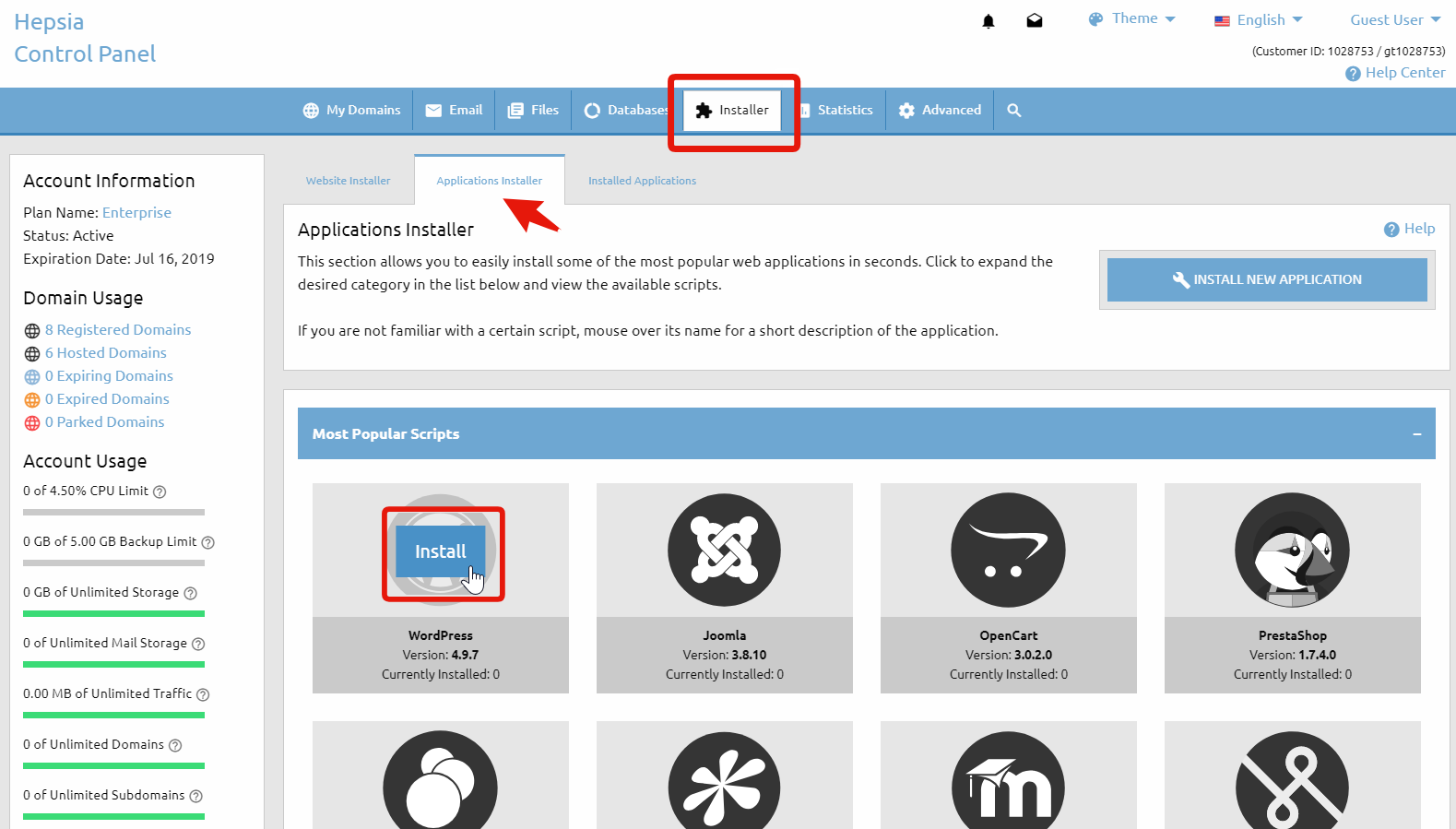
Step 1: Access the Applications Installer
Log into your Control Panel and navigate to the Applications Installer section. Here, you’ll find a range of categorized applications such as Content Management, Blogs, and Discussion Boards.
Step 2: Select and Install the Script
Hover over the desired application to view details like the version and installation history. Once you’ve chosen a script, click to proceed.
- Choose your Domain.
- Select the Path for installation (e.g., “/forum”).
- Enter Admin User details and set your Admin Password.
- Set your Admin Email and Weblog Title.
- Pick a Database (create a new one or select an existing one).
Step 3: Finalize Installation
Review your settings and click the Install button. In just a few seconds, your script will be ready to use. You will be provided with the Admin URL, where you can log in and manage the script.
Post-Installation Management
After installation, manage your scripts in the Installed Applications section. You can easily view details, access the file manager, and change templates.






Leave your comment